---
title: "Using Oozie"
slug: "df-eco-oozie"
tags: ["Data Forest", "VPC"]
updated: 2026-09-17T09:17:55Z
published: 2026-09-17T09:17:55Z
canonical: "guide.ncloud-docs.com/df-eco-oozie"
---
> ## Documentation Index
> Fetch the complete documentation index at: https://guide.ncloud-docs.com/llms.txt
> Use this file to discover all available pages before exploring further.
# Using Oozie
Available in VPC
Oozie is a workflow scheduler system which manages Apache Hadoop's MapReduce jobs' workflow. It helps manage frequent MapReduce jobs and run periodic jobs easily. This guide explains examples of writing a workflow using Oozie.
Note
Refer to [official Oozie document](http://oozie.apache.org/) for more information about Oozie.
## OozieCLI
Oozie CLI is a client provided by Apache Oozie. Oozie CLI is a client that has some customized features. It is returned immediately after a job submission and does not wait for the job to finish.
| Item | OozieCLI |
| --- | --- |
| Execution script name | `/bin/oozie` |
| Options supported | Various options are available such as job, jobs, admin, validate, etc. |
| command | Commands are used in the format of Oozie job `<OPTIONS>`. |
| job operation | Operations such as run, rerun, submit, suspend, etc., are available. |
## Workflow
Workflows are defined with XML-based hadoop Process Definition Language (hPDL). Since a workflow definition is a Direct Acyclic Graph (DAG) made up of flow control nodes and action nodes, it does not provide directed cyclic graphs.
A workflow includes flow control nodes and action nodes.
- **Flow control node**: It defines the beginning and the end of a workflow (start, end, and fail nodes), and provides a mechanism to control the workflow's direction of execution (decision, fork, and join nodes). A workflow can use parameters like `${inputDir}`. When a job is submitted, the parameter value of the workflow must be provided, written in a job properties file.
- **Action node**: It enables a workflow to begin execution of calculation and processing tasks, and provides a variety of actions such as Hadoop MapReduce, file system, SSH, email, and sub-workflow.
### Write workflow
Workflows are written in workflow.xml.
DAG defined with a workflow works as follows. Define a workflow by referring to the following image.
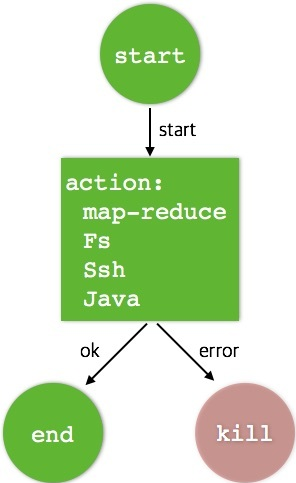
Specify the names of the start, end, and kill nodes with a flow control node.
```
# Specify [ACTION-NODE-NAME], [NEXT-NODE-NAME], [END-NODE-NAME], and [ERROR-NODE-NAME] according to the task you want.
...
...
[MESSAGE-TO-LOG]
```
- **start** node
It specifies the first action to start when a workflow is run. The action runs in the order specified in the start node, not the order of definition. Refer to [Write action node](/docs/en/df-eco-oozie#%EC%95%A1%EC%85%98-%EB%85%B8%EB%93%9C-%EC%9E%91%EC%84%B1) for how to write action nodes.
- **ok** node
It specifies the name of the action, and specifies the node to run when the action is finished normally. The example above shows `[END-NODE-NAME]`, but you can also specify the second action node name to run.
- **error** node
It specifies the node to run when the action is finished normally. Write the **kill** node or the action node to run next, in the same manner as the **ok** node.
- **kill** node
It can end the workflow job by itself. The job is killed by an error (KILLED). message's content will be logged as the kill reason for the workflow job.
- **end** node
It is the end for a workflow job, and indicates that the job has been completed successfully (SUCCEEDED).
Note
For the flow control nodes other than nodes explained, refer to [Decision](http://oozie.apache.org/docs/4.2.0/WorkflowFunctionalSpec.html#a3.1.4_Decision_Control_Node) and [Fork and join](http://oozie.apache.org/docs/4.2.0/WorkflowFunctionalSpec.html#a3.1.5_Fork_and_Join_Control_Nodes).
### Write action node
Define an action node. The example of MapReduce action is as follows.
```
...
[ResourceManagerHostAddress:Port][NameNodeHostAddress:Port][MAPPER][REDUCER]mapred.mapper.new-apitruemapred.reducer.new-apitrue[PROPERTY-NAME][PROPERTY-VALUE]
...
...
[FILE-PATH][FILE-PATH]
...
...
```
The following describes how to define each action node in the MapReduce version 2 (hereinafter referred to as MRv2).
- `job-tracker`
Specify as the ResourceManager's address in MRv2. Write `ResourceManagerHostAddress:Port`. Since Data Forest grants ID to ResourceManager, it uses either **rm1** or **rm2**.
- `name-node`
Write a name node address. Since Data Forest provides two HDFS namespaces, designate the namespace to use between `hdfs://koya` and `hdfs://tata`.
- `prepare`
Write the job that runs before the job starts. Write a job such as Delete output directory.
- `configuration`
Write the settings for the job after configuration. For MRv2, `mapred.[mapper|reducer].new-api` must be set to **true**. Write all the settings required for other jobs.
- `file` / `archive`
When deploying the files with distributed cache, add file or archive definitions.
Note
The content of the workflow settings can be defined with parameters such as `${NAME}`. If the settings have to be changed for each job execution, then defining them with parameters enables executions in multiple environments without editing the workflow.
#### Workflow example
After defining flow control node and action node, write a wordcount program written in Java and Python in a workflow.
**MapReduce example using Java**
```
${jobTracker}${nameNode}mapred.mapper.new-apitruemapred.reducer.new-apitruemapreduce.job.queuename${queueName}mapreduce.input.fileinputformat.inputdir${inputDir}mapreduce.output.fileoutputformat.outputdir${outputDir}mapreduce.job.reduces${reduceNum}mapreduce.task.timeout0mapreduce.job.map.classorg.apache.hadoop.examples.WordCount$TokenizerMappermapreduce.job.reduce.classorg.apache.hadoop.examples.WordCount$IntSumReducermapreduce.job.output.key.classorg.apache.hadoop.io.Textmapreduce.job.output.value.classorg.apache.hadoop.io.IntWritablemapreduce.job.inputformat.classorg.apache.hadoop.mapreduce.lib.input.TextInputFormatmapreduce.job.outputformat.classorg.apache.hadoop.mapreduce.lib.output.TextOutputFormatJava failed, error message[${wf:errorMessage(wf:lastErrorNode())}]
```
**MapReduce example using streaming**
```
${jobTracker}${nameNode}python mapper.pypython reducer.pymapreduce.job.queuename${queueName}mapreduce.input.fileinputformat.inputdir${inputDir}mapreduce.output.fileoutputformat.outputdir${outputDir}mapreduce.job.reduces${reduceNum}mapreduce.task.timeout0mapper.pyreducer.pyJava failed, error message[${wf:errorMessage(wf:lastErrorNode())}]
```
### Deploy workflow
In order to actually execute jobs after writing workflows, the workflow and library required for running should be deployed on HDFS. Upload the written workflow to HDFS's job directory, and place the library required for running jobs (*.jar, *.so) in the lib directory.
```
├── workflow.xml
└── lib
└── hadoop-mapreduce-examples-2.7.1.jar
```
Note
The JAR files contained in the lib directory are automatically added to the classpath. When additionally needed JAR files or native libraries are specified in the file element, they don't necessarily have to be placed in the lib directory.
**Streaming job**
The following describes how to run a streaming job.
1. Upload `hadoop-streaming-<VERSION>.jar` to the lib directory.
2. Upload the scripts or programs specified in the mapper and reducer to the HDFS path.
```
├── workflow.xml
├── mapper.py
├── reducer.py
└── lib
└── hadoop-streaming-2.7.1.jar
```
### Run workflow
Job properties must be written before running workflows deployed on HDFS.
#### Write job properties
Write a job properties file where the workflow's parameters are set.
```
# Hadoop configuration
nameNode=hdfs://koya
jobTracker=rm1
# Oozie configuration
oozie.wf.application.path=${serviceDir}/workflow
# job directory information
serviceDir=${nameNode}/user/test01/wordcount
inputDir=${serviceDir}/input
outputDir=${serviceDir}/output
# user information
user.name=test01
# job configuration
queueName=default
reduceNum=2
# For name node and job tracker, put in the information of the cluster to run the job.
# For oozie.wf.application.path, write the location where the workflow of the job to run is deployed.
```
#### Deploy job properties
The completed job properties file does not need to be deployed to HDFS or other systems. Place it on the device that will execute the Oozie command.
#### Run job properties
Execute the Oozie job after the workflow deployment and job properties file composition is completed.
```
oozie job -oozie -config