---
title: "Android SDK"
slug: "game-gamepotandroid"
tags: ["GAMEPOT"]
updated: 2026-09-17T09:18:10Z
published: 2026-09-17T09:18:10Z
canonical: "guide.ncloud-docs.com/game-gamepotandroid"
stale: true
---
> ## Documentation Index
> Fetch the complete documentation index at: https://guide.ncloud-docs.com/llms.txt
> Use this file to discover all available pages before exploring further.
# Android SDK
Available in Classic and VPC
This page describes how to use GAMEPOT Android SDK for game development for the Android operating system. You can integrate the game and dashboard by installing the SDK and configuring the environment.
## Required specifications
The recommended specifications required to use GAMEPOT SDK for Android operating system are as follows:
- Minimum specifications: API 21 or later, Gradle 3.3.3, 3.4.3, or later
- Development environment: Android Studio
## Install SDK and configure environment
You can install the GAMEPOT Android SDK, configure the environment, and integrate the game and GAMEPOT dashboard to use features required for the game development.
### SDK installation
The following describes how to install GAMEPOT Android SDK and configure a project in Android Studio.
1. Click the download link from [Download GAMEPOT SDK > Android](/docs/en/game-gamepot-gamepotsdk-android).
2. Run Android Studio, and open the game project.
3. Decompress the downloaded Android OS SDK file, and copy all files in the libs folder to the libs folder of the game project.
### Modify build.gradle
The following describes how to edit the build.gradle file.
1. Use the following code to edit the build.gradle file in the root folder of the project.
```
buildscript {
repositories {
...
google()
mavenCentral()
maven { url "https://jitpack.io" }
}
dependencies {
...
classpath 'com.google.gms:google-services:4.3.14'
}
}
allprojects {
repositories {
...
google()
mavenCentral()
maven { url "https://jitpack.io" }
}
}
```
2. Edit values of the following code by referring to the table, and then use that code to edit the build.gradle file in the app folder. The value for gamepot_payment is blank as its default.
| Value | Description |
| --- | --- |
| `gamepot_project_id` | Project ID issued by GAMEPOT (Check from the **Project settings > General** menu in the dashboard.) |
| `gamepot_store` | Enter the store value `google`, `one`, or `galaxy`. |
| `gamepot_app_title` | App title (FCM) |
| `gamepot_push_default_channel` | Do not change (name of the registered default channel). |
| `facebook_app_id` | App ID issued by Facebook |
| `fb_login_protocol_scheme` | fb[App ID issued by Facebook] e.g., fb101010 |
| `facebook_client_token` | Facebook console > App settings > Advanced settings > Client token |
| `gamepot_elsa_projectid` | Enter the ELSA project ID when using the NAVER Cloud ELSA service. (See [Effective Log Search & Analytics](https://www.ncloud.com/product/analytics/elsa).) |
| `gamepot_region` | Type sg only when the GAMEPOT Dashboard creation Region is Singapore. |
| `gamepot_license_url` | Enter https://gamepot.apigw.ntruss.com/fw/jp-v1 only if the GAMEPOT dashboard creation Region is Japan. |
```
android {
defaultConfig {
...
// GamePot [START]
resValue "string", "gamepot_project_id", "[projectId]" // required
resValue "string", "gamepot_store", "[storeId]" // required
resValue "string", "gamepot_payment", "[storeId]" // optional
resValue "string", "gamepot_app_title","@string/app_name" // required (fcm)
resValue "string", "gamepot_push_default_channel","Default" // required (fcm)
resValue "string", "facebook_app_id", "[Facebook ID]" // facebook
resValue "string", "fb_login_protocol_scheme", "fb[Facebook ID]" // (facebook)
resValue "string", "facebook_client_token", "[Facebook client token]" // Facebook console > App settings > Advanced settings > Client token
// resValue "string", "gamepot_elsa_projectid", "" // (ncp elsa)
resValue "string", "gamepot_region", "" // Caution! Only if the gamepot region is Singapore , value as sg
resValue "string", "gamepot_license_url", "" // Caution! Only if the gamepot region is Japan , value as https://gamepot.apigw.ntruss.com/fw/jp-v1
// GamePot [END]
}
packagingOptions {
exclude 'META-INF/proguard/androidx-annotations.pro'
}
}
repositories {
flatDir {
dirs 'libs'
}
}
dependencies {
implementation 'androidx.appcompat:appcompat:1.2.0'
implementation 'androidx.multidex:multidex:2.0.1'
// GamePot common [START]
implementation(name: 'gamepot-common', ext: 'aar')
implementation('io.socket:socket.io-client:2.1.0') {
exclude group: 'org.json', module: 'json'
}
implementation('com.github.ihsanbal:LoggingInterceptor:3.0.0') {
exclude group: 'org.json', module: 'json'
}
implementation "com.github.nisrulz:easydeviceinfo:2.4.1"
implementation 'com.android.installreferrer:installreferrer:1.0'
implementation 'com.google.code.gson:gson:2.8.2'
implementation 'com.jakewharton.timber:timber:4.7.0'
implementation 'com.squareup.okhttp3:okhttp:4.9.1'
implementation 'com.apollographql.apollo:apollo-runtime:2.5.14'
implementation 'com.apollographql.apollo:apollo-android-support:2.5.14'
implementation 'com.android.billingclient:billing:7.0.0'
implementation 'com.google.firebase:firebase-crashlytics-buildtools:2.9.1'
implementation 'com.github.bumptech.glide:glide:4.13.0'
implementation 'androidx.sqlite:sqlite-framework:2.0.1'
implementation 'com.google.firebase:firebase-core:18.0.1'
implementation 'com.google.firebase:firebase-messaging:23.1.2'
implementation 'com.google.firebase:firebase-iid:21.1.0'
implementation "androidx.swiperefreshlayout:swiperefreshlayout:1.1.0"
implementation 'pub.devrel:easypermissions:3.0.0'
implementation(name: 'pageindicatorview-1.0.3', ext: 'aar')
implementation(name: 'puree-4.1.6', ext: 'aar')
implementation 'androidx.swiperefreshlayout:swiperefreshlayout:1.1.0'
// GamePot common [END]
implementation(name: 'gamepot-channel-base', ext: 'aar')
// GamePot facebook [START]
implementation(name: 'gamepot-channel-facebook', ext: 'aar')
implementation 'com.facebook.android:facebook-android-sdk:14.1.1'
// GamePot facebook [END]
// GamePot google sigin [START]
implementation(name: 'gamepot-channel-google-signin', ext: 'aar')
implementation "com.google.android.gms:play-services-auth:19.0.0"
// GamePot google sigin [END]
}
// ADD THIS AT THE BOTTOM
apply plugin: 'com.google.gms.google-services'
```
3. Copy the google-service.json file obtained from Google Developer Center and paste it under the app folder.
4. Refresh Android Studio.
#### When refresh fails
When the refresh fails with a notification message displayed, solve it as shown below.
- **Message**: Configuration 'compile' is obsolete and has been replaced with 'implementation' and 'api'. It will be removed at the end of 2018. For more information see: http://d.android.com/r/tools/update-dependency-configurations.html **Description**: The `compile` settings is no longer supported. Edit the parts where `compile` is entered to `implementation` in the project code.
- **Message**: No matching client found for package name '[packagename]' **Description**: Edit it so that the package name of the app matches the package name declared in the google-service.json file.
### Set AndroidManifest.xml
Use the following code to add the settings value generally used for games by setting AndroidManifest.xml.
```
```
### Set push notification icon
You can set icons to display in the notification bar when receiving push messages. If you don't set it up separately, then the default image included in the SDK is used. You can set up icons that suit the game. If you create it using [Android Asset Studio](http://romannurik.github.io/AndroidAssetStudio/icons-notification.html#source.type=clipart&source.clipart=ac_unit&source.space.trim=1&source.space.pad=0&name=ic_stat_gamepot_small), it is convenient as the images are generated for each folder automatically.
The following describes how to set push notification icons.
1. As shown below, create each res/drawable folders in the project path, and add image files for each size.
| Folder name | Capacity |
| --- | --- |
| res/drawable-mdpi/ | 24x24 |
| res/drawable-hdpi/ | 36x36 |
| res/drawable-xhdpi/ | 48x48 |
| res/drawable-xxhdpi/ | 72x72 |
| res/drawable-xxxhdpi/ | 96x96 |
2. Rename the image file to ic_stat_gamepot_small.
### Reset
Use the following code in the MainActivity.java file to reset.
```
import io.gamepot.common.GamePot;
import io.gamepot.common.GamePotLocale;
@Override
protected void onCreate(Bundle savedInstanceState) {
super.onCreate(savedInstanceState);
// Initialize GAMEPOT. Make sure to enter application context for context.
// Call the setup API first, before any other APIs.
GamePot.getInstance().setup(getApplicationContext());
}
@Override
protected void onActivityResult(int requestCode, int resultCode, Intent data) {
super.onActivityResult(requestCode, resultCode, data);
GamePot.getInstance().onActivityResult(requestCode, resultCode, data);
}
@Override
protected void onStart() {
super.onStart();
GamePotChat.getInstance().start();
GamePot.getInstance().onStart(this);
}
@Override
protected void onStop() {
super.onStop();
GamePotChat.getInstance().stop();
}
@Override
protected void onDestroy() {
super.onDestroy();
GamePot.getInstance().onDestroy();
}
```
## Login-related features
You can integrate various login SDK features such as Google, Facebook, and NAVER, and use them in GAMEPOT Android SDK.
### Settings before use
To use the login-related SDK features, you need to declare login-related code after completing necessary console settings.
#### Set Google Firebase console
To set up the Google Firebase console to use the login feature, add the SHA-1 value of the keystore file used for configuring APK to the Firebase console.
#### Facebook console
The following describes how to set up Facebook console to use the login feature.
1. From the Facebook for Developers console, select the app type as **None**, **Consumer**, or **Gaming**, and create the app.
2. Add the key hash value of the keystore file used when configuring the APK to the Facebook for Developers console.
#### Set MainActivity.java
Use the following code to set the MainActivity.java file by declaring login-related code.
```
import io.gamepot.channel.GamePotChannel;
import io.gamepot.channel.GamePotChannelType;
import io.gamepot.channel.facebook.GamePotFacebook;
import io.gamepot.channel.google.signin.GamePotGoogleSignin;
public class MainActivity extends AppCompatActivity {
@Override
protected void onCreate(Bundle savedInstanceState) {
// Call the setup API first.
GamePot.getInstance().setup(getApplicationContext());
...
// Call addChannel by channel to be used for login. Guest type is included by default.
// Initialize Google login
GamePotChannel.getInstance().addChannel(this, GamePotChannelType.GOOGLE, new GamePotGoogleSignin());
// Initialize Facebook login
GamePotChannel.getInstance().addChannel(this, GamePotChannelType.FACEBOOK, new GamePotFacebook());
...
}
@Override
protected void onActivityResult(int requestCode, int resultCode, Intent data) {
super.onActivityResult(requestCode, resultCode, data);
GamePotChannel.getInstance().onActivityResult(this, requestCode, resultCode, data);
}
@Override
protected void onDestroy() {
super.onDestroy();
GamePotChannel.getInstance().onDestroy();
}
}
```
### Login feature
Use the following code to use the SDK login feature that functions when clicking the login button according to the login UI implemented by the developer.
```
import io.gamepot.channel.GamePotChannel;
import io.gamepot.channel.GamePotChannelListener;
import io.gamepot.channel.GamePotChannelType;
import io.gamepot.channel.GamePotUserInfo;
import io.gamepot.common.GamePotError;
// Define login type.
// GamePotChannelType.GOOGLE : Google
// GamePotChannelType.FACEBOOK: Facebook
// GamePotChannelType.NAVER: NAVER
// GamePotChannelType.LINE: LINE
// GamePotChannelType.TWITTER: Twitter
// GamePotChannelType.APPLE: Apple
// GamePotChannelType.GUEST: Guest
// Appears when a user clicks the Google login button.
GamePotChannel.getInstance().login(this, GamePotChannelType.GOOGLE, new GamePotChannelListener() {
@Override
public void onCancel() {
// The user canceled login
}
@Override
public void onSuccess(GamePotUserInfo userinfo) {
// Login succeeded. Handle this according to the game logic.
// userinfo.getMemberid(): Member's unique ID
}
@Override
public void onFailure(GamePotError error) {
// Login failed. Display the error message using error.getMessage().
}
});
```
#### Acquire member's unique ID
Use the following code to acquire game member's unique ID value.
```
GamePot.getInstance().getMemberId();
```
#### Use login feature by account
Use the following code to apply settings to use the login feature by account.
- **NAVER login**
```
android {
defaultConfig {
...
resValue "string", "gamepot_naver_clientid", "xxxxxxxx" // Acquire from the NAVER developer console
resValue "string", "gamepot_naver_secretid", "xxx" // Acquire from the NAVER developer console
}
}
dependencies {
...
compile(name: 'gamepot-channel-naver', ext: 'aar')
...
}
```
```
import io.gamepot.channel.GamePotChannel;
import io.gamepot.channel.GamePotChannelType;
import io.gamepot.channel.naver.GamePotNaver;
@Override
protected void onCreate(Bundle savedInstanceState) {
super.onCreate(savedInstanceState);
...
GamePotChannel.getInstance().addChannel(this, GamePotChannelType.NAVER, new GamePotNaver());
}
```
```
GamePotChannel.getInstance().login(this, GamePotChannelType.NAVER, new GamePotAppStatusChannelListener() {
...
});
```
- Set build.gradle
- Set MainActivity.java
- Login
- **LINE login**
```
android {
defaultConfig {
...
resValue "string", "gamepot_line_channelid","00000000" // Acquire from the LINE developer console
}
}
dependencies {
...
compile(name: 'gamepot-channel-line', ext: 'aar')
compile(name: 'line-sdk-4.0.10', ext: 'aar')
...
}
```
```
import io.gamepot.channel.GamePotChannel;
import io.gamepot.channel.GamePotChannelType;
import io.gamepot.channel.line.GamePotLine;
@Override
protected void onCreate(Bundle savedInstanceState) {
super.onCreate(savedInstanceState);
...
GamePotChannel.getInstance().addChannel(this, GamePotChannelType.LINE, new GamePotLine());
}
```
```
GamePotChannel.getInstance().login(this, GamePotChannelType.LINE, new GamePotAppStatusChannelListener() {
...
});
```
- Set build.gradle
- Set MainActivity.java
- Login
- **Apple web login**
```
dependencies {
...
compile(name: 'gamepot-channel-apple-signin', ext: 'aar')
...
}
```
```
import io.gamepot.channel.GamePotChannel;
import io.gamepot.channel.GamePotChannelType;
import io.gamepot.channel.apple.signin.GamePotAppleSignin;
@Override
protected void onCreate(Bundle savedInstanceState) {
super.onCreate(savedInstanceState);
...
GamePotChannel.getInstance().addChannel(this, GamePotChannelType.APPLE, new GamePotAppleSignin());
}
```
```
GamePotChannel.getInstance().login(this, GamePotChannelType.APPLE, new GamePotAppStatusChannelListener() {
...
});
```
- Set build.gradle
- Set MainActivity.java
- Login
### Auto login feature
To use the auto login feature through the API that delivers the last login information of the member, use the following code.
```
import io.gamepot.channel.GamePotChannel;
import io.gamepot.channel.GamePotChannelListener;
import io.gamepot.channel.GamePotChannelType;
import io.gamepot.channel.GamePotUserInfo;
import io.gamepot.common.GamePotError;
// API that delivers the user’s last login information
final GamePotChannelType lastLoginType = GamePotChannel.getInstance().getLastLoginType();
if(lastLoginType != GamePotChannelType.NONE) {
// Log in with the user's last login type.
GamePotChannel.getInstance().login(this, lastLoginType, new GamePotChannelListener() {
@Override
public void onCancel() {
// The user canceled login
}
@Override
public void onSuccess(GamePotUserInfo info) {
// Auto login completed. Handle this according to the game logic.
}
@Override
public void onFailure(GamePotError error) {
// Auto login failed. Display the error message using error.getMessage().
}
});
}
else
{
// The user logs in the game for the first time, or is currently logged out. Move to the login page where the user can log in.
}
```
### Logout feature
Use the following code to use the logout feature.
```
import io.gamepot.channel.GamePotChannel;
import io.gamepot.common.GamePotCommonListener;
import io.gamepot.common.GamePotError;
GamePotChannel.getInstance().logout(this, new GamePotCommonListener() {
@Override
public void onSuccess() {
// Logout completed. Move to the initial screen.
}
@Override
public void onFailure(GamePotError error) {
// Logout failed. Display the error message using error.getMessage().
}
});
```
### Membership withdrawal feature
Use the following code to use the membership withdrawal feature.
```
import io.gamepot.channel.GamePotChannel;
import io.gamepot.common.GamePotCommonListener;
import io.gamepot.common.GamePotError;
GamePotChannel.getInstance().deleteMember(this, new GamePotCommonListener() {
@Override
public void onSuccess() {
// Membership withdrawal succeeded. Move to the initial screen.
}
@Override
public void onFailure(GamePotError error) {
// Membership withdrawal failed. Display the error message using error.getMessage().
}
});
```
### Login validation feature
After the login is complete, the login information can be passed from the developer server to the GAMEPOT server to perform login validation.
For more information, see [Request login validation](/docs/en/game-gamepotserver#%EB%A1%9C%EA%B7%B8%EC%9D%B8%EA%B2%80%EC%A6%9D%EC%9A%94%EC%B2%AD).
## Integrate external account
You can connect or disconnect multiple external accounts to a game account.
### Account link feature
Use the following code to use the integration feature to various external accounts including Google, Facebook, and NAVER.
```
import io.gamepot.channel.GamePotChannel;
import io.gamepot.channel.GamePotChannelListener;
import io.gamepot.channel.GamePotChannelType;
import io.gamepot.channel.GamePotUserInfo;
import io.gamepot.common.GamePotError;
// Connect with Google account
// GamePotChannelType.GOOGLE
// Link Facebook account
// GamePotChannelType.FACEBOOK
// Link NAVER account
// GamePotChannelType.NAVER
// Link LINE account
// GamePotChannelType.LINE
// Link Twitter account
// GamePotChannelType.TWITTER
// Link Apple account
// GamePotChannelType.APPLE
GamePotChannel.getInstance().createLinking(this, GamePotChannelType.GOOGLE, new GamePotChannelListener() {
@Override
public void onSuccess(GamePotUserInfo userInfo) {
// Connection completed. Display the message about linkage result. (Example: "Account linkage succeeded.")
}
@Override
public void onCancel() {
// Linkage process canceled by the user
}
@Override
public void onFailure(GamePotError error) {
// Linkage failed. Display the error message using error.getMessage().
}
});
```
### Linkage list check feature
Use the following code to check the list of external accounts connected to the account.
```
import io.gamepot.channel.GamePotChannel;
import java.util.ArrayList;
// Define types.
// GamePotChannelType.GOOGLE
// GamePotChannelType.FACEBOOK
// GamePotChannelType.NAVER
// GamePotChannelType.LINE
// GamePotChannelType.TWITTER
// GamePotChannelType.APPLE
// Return connection results for each type.
boolean isLinked = GamePotChannel.getInstance().isLinked(GamePotChannelType.GOOGLE);
// Return results in JSON for all connected types.
// If the account is linked with Google and Facebook, then it returns the following results.
// [{“provider”:”google”},{“provider”:”facebook”}]
JSONArray linking = GamePotChannel.getInstance().getLinkedList();
```
### Linkage removal feature
Use the following code to use the integration removal feature from external accounts.
```
import io.gamepot.channel.GamePotChannel;
import io.gamepot.channel.GamePotChannelType;
import io.gamepot.common.GamePotCommonListener;
import io.gamepot.common.GamePotError;
GamePotChannel.getInstance().deleteLinking(this, GamePotChannelType.GOOGLE, new GamePotCommonListener() {
@Override
public void onSuccess() {
// Linkage removal completed. Display the message showing the connection result. (Example: Successfully disconnected.)
}
@Override
public void onFailure(GamePotError error) {
// Linkage removal failed. Display the error message using error.getMessage().
}
});
```
## Payment feature
```
GAMEPOT payment is only supported for the expendable in-app product type. Only the V21 version of the in-app SDK is supported for ONE Store.
Include ONE Store in-app SDK: gamepot-billing-onestore.aar
Include Galaxy Store in-app SDK: gamepot-billing-galaxystore.aar
Include My Card in-app SDK: gamepot-billing-mycard.aar (Make sure that this is not included in Google Store builds.)
```
You can use the payment feature for in-app purchases. The result value of payment is implemented as listener format.
For ONE Store, you need the following steps.
1. Add the following statement in build.gradle (:project).
```
allprojects {
repositories {
...
mavenCentral()
maven { url 'https://repo.onestore.co.kr/repository/onestore-sdk-public' }
...
}
}
```
1. Add the following statement in build.gradle (:app).
```
dependencies {
...
implementation(name: 'gamepot-billing-onestore', ext: 'aar')
implementation 'com.onestorecorp.sdk:sdk-iap:21.01.00'
...
}
```
1. Add the following statement in the AndroidManifest.xml file.
```
```
### Set MainActivity.java
Use the following code to set the MainActivity.java file to use the payment feature.
```
import io.gamepot.common.GamePot;
import io.gamepot.common.GamePotPurchaseInfo;
import io.gamepot.common.GamePotPurchaseListener;
import io.gamepot.common.GamePotError;
public class MainActivity extends AppCompatActivity {
@Override
protected void onCreate(Bundle savedInstanceState) {
// Call the setup API first.
GamePot.getInstance().setup(getApplicationContext());
...
GamePot.getInstance().setPurchaseListener(new GamePotPurchaseListener() {
@Override
public void onSuccess(GamePotPurchaseInfo info) {
// Payment succeeded. Make a server-to-server request to the address set in webhook to request the provision of items.
// Only perform the result handling here, and do not provide actual items.
}
@Override
public void onFailure(GamePotError error) {
// Payment failed. Display the error message using error.getMessage().
}
@Override
public void onCancel() {
// When the user cancels the payment process
}
});
...
}
}
```
### Payment attempt feature
You can use the payment attempt feature in both Google Play Store and ONE Store with a single payment API.
Use the following code to use the payment attempt feature.
- General payment attempt
```
import io.gamepot.common.GamePot;
// productId: Product ID registered in the store
GamePot.getInstance().purchase("product id");
```
- Manage payment attempts and receipt numbers separately
```
import io.gamepot.common.GamePot;
// productId: Product ID registered in the store
// uniqueId: Receipt ID that is separately managed
GamePot.getInstance().purchase("product id", "uniqueId");
```
- Manage payment attempts and receipt numbers separately, deliver character information through webhook
(For the ONE Store version, the length of uniqueId+serverId+playerId+etc should be less than 85 bytes for payments to be made.)
```
import io.gamepot.common.GamePot;
// productId: Product ID registered in the store
// uniqueId: Receipt ID that is separately managed
// serverId: Server ID of the character for whom the payment was made
// playerId: Character ID of the character for whom the payment was made
// etc : Other information of the character that made the purchase
GamePot.getInstance().purchase("product id","uniqueId","serverId","playerId","etc");
```
### Acquire purchased item list feature
Use the following code to use the feature to acquire in-app payment item list delivered from the store.
In the case of the getPurchaseDetailList API, which needs to be called after a successful login, it may be forwarded as an empty value depending on the timing of the call, as it is an API that receives the contents from the store's in-app SDK asynchronously. ( The environment that supports payment )
```
import io.gamepot.common.GamePot;
//[case1]
GamePotPurchaseDetailList details = GamePot.getInstance().getPurchaseDetailList();
//[case2]
GamePot.getInstance().getPurchaseDetailListAsync(new GamePotListener() {
@Override
public void onSuccess(GamePotPurchaseDetailList data) {
//data : In-app information
}
@Override
public void onFailure(GamePotError error) {
// api error
}
});
```
### Provide purchased item feature
You can set it so that the payment request is sent to the developer server only upon the completion of validation, which compares it to the receipt history of the purchased store.
For more information, see [Request item provision](/docs/en/game-gamepotserver#%EC%95%84%EC%9D%B4%ED%85%9C%EC%A7%80%EA%B8%89%EC%9A%94%EC%B2%AD).
### My Card payment
My Card library: [gamepot-billing-mycard.aar](https://xyuditqzezxs1008973.cdn.ntruss.com/patch/gamepot-billing-mycard.aar)
Note
Check the FacServiceID/KEY values to integrate with My Card from My Card, and set them on the dashboard.
1. In Dashboard >> Payment >> IAP, enter Store type: Google item > Add price > Enter currency (e.g., TWD) and price information, and then save.
2. Add My Card to the Dashboard >> Project settings >> External payment item, and check if the FacService ID/Sign key have been entered correctly.
3. The payment will call the SDK's following code.
GamePot.getInstance().purchase("product id");
- The format of calling paid items for using My Card will incur an error when calling the existing GamePot.getInstance().getPurchaseDetailList();.
Call GamePot.getInstance().getPurchaseThirdPaymentsDetailList(); instead.
4. Remove the name of the level from the ./AndroidManifest.xml file.
```
```
1. Configure the build.gradle file as shown below.
```
resValue "string", "gamepot_store", "google"
resValue "string", "gamepot_payment", "mycard" // This only works if the store is Google.
```
1. Check if the ../libs folder contains gamepot-billing-mycard.aar.
2. Check if the build.gradle file is configured to be able to contain a library when building.
E.g., Check if the implementation (name: "gamepot-billing-mycard", ext: "aar") is included.
### External payment feature
For ONE Store: To integrate a payment module that doesn't use the in-app SDK supported by ONE Store, first complete the setup by referring to [Integrate external payment service](/docs/en/game-gamepot-projectmgmt#%EC%99%B8%EB%B6%80%EA%B2%B0%EC%A0%9C%EC%84%9C%EB%B9%84%EC%8A%A4%EC%97%B0%EB%8F%99), and then use the following code.
- **Payment attempt**
```
import io.gamepot.common.GamePot;
// activity: Current activity
// product id: Payment ID registered in the dashboard
GamePot.getInstance().purchaseThirdPayments(activity, product id);
```
- **Acquire purchased item list**
```
import io.gamepot.common.GamePot;
GamePotPurchaseDetailList thirdPaymentsDetailList = GamePot.getInstance().getPurchaseThirdPaymentsDetailList();
```
## Login UI provided by SDK
You can use the login UI provided by GAMEPOT Android SDK in a completed form.
### Use login UI provided by SDK
Use the following code to set the MainActivity.java file to use the provided login UI.
```
import io.gamepot.channel.GamePotChannel;
import io.gamepot.channel.GamePotChannelListener;
import io.gamepot.channel.GamePotAppStatusChannelListener;
import io.gamepot.channel.GamePotChannelType;
import io.gamepot.channel.GamePotChannelLoginBuilder;
import io.gamepot.channel.GamePotUserInfo;
import io.gamepot.common.GamePotError;
String[] channelList = {"google", "facebook", "naver", "line", "twitter", "apple", "guest"};
GamePotChannelLoginBuilder builder = new GamePotChannelLoginBuilder(channelList);
// Called when the login button is clicked
GamePotChannel.getInstance().showLoginWithUI( this, builder, new GamePotAppStatusChannelLoginDialogListener() {
@Override
public void onExit() {
// Process when the X button is clicked
}
@Override
public void onNeedUpdate(GamePotAppStatus status) {
// TODO: When you need forced updates. Call the following API to display the pop-up provided by SDK.
// TODO: You can also customize the function without calling this API below.
GamePot.getInstance().showAppStatusPopup(this, status, new GamePotAppCloseListener() {
@Override
public void onClose() {
// TODO: This API is called to shut down the app if the showAppStatusPopup API is called.
// TODO: Handle the shutdown process.
MainActivity.this.finish();
}
@Override
public void onNext(Object obj) {
// TODO: When you select recommended settings in the Dashboard update settings, the "Do next time" button will appear.
// Called when the user selects that button.
// TODO: Handle in the same way as when login is completed with the obj information.
// GamePotUserInfo userInfo = (GamePotUserInfo)obj;
}
});
}
@Override
public void onMainternance(GamePotAppStatus status) {
// TODO: When a maintenance check is in progress. Call the following API to display the pop-up provided by SDK.
// TODO: You can also customize the function without calling this API below.
GamePot.getInstance().showAppStatusPopup(this, status, new GamePotAppCloseListener() {
@Override
public void onClose() {
// TODO: This API is called to shut down the app if the showAppStatusPopup API is called.
// TODO: Handle the shutdown process.
MainActivity.this.finish();
}
});
}
@Override
public void onCancel() {
// When a user cancels login.
}
@Override
public void onSuccess(GamePotUserInfo userinfo) {
// Login completed. Handle this according to the game logic.
// userinfo.getMemberid(): Member's unique ID
}
@Override
public void onFailure(GamePotError error) {
// Login failed. Display the error message using error.getMessage().
}
@Override
public void onGameServiceConflict(GamePotUserInfo conflictUserInfo) {
// This is an event that may occur when using GPGS account integration.
}
});
```
### Set logo image for the provided login UI
You can set the image displayed at the top of the provided login UI. If you don't set it up separately, then the default image included in the SDK is used. You can set up images that suits the game.
The following describes how you can set the image for the provided login UI.
1. As shown below, create REW/drawable folders respectively, and then add image files for each size.
| Folder name | Capacity |
| --- | --- |
| res/drawable-mdpi/ | 24x24 |
| res/drawable-hdpi/ | 36x36 |
| res/drawable-xhdpi/ | 48x48 |
| res/drawable-xxhdpi/ | 72x72 |
| res/drawable-xxxhdpi/ | 96x96 |
2. Rename the image file to ic_stat_gamepot_small.
## Coupon feature
Use the following code to use the feature that processes the coupon entered by the user as used.
```
import io.gamepot.common.GamePot;
import io.gamepot.common.GamePotError;
import io.gamepot.common.GamePotListener;
GamePot.getInstance().coupon(/*Coupon entered by user*/, new GamePotListener() {
@Override
public void onSuccess(String message) {
// Succeeded to use coupon. Display the message value as a pop-up.
}
@Override
public void onFailure(GamePotError error) {
// Failed to use coupon. Display the message using error.getMessage().
}
});
```
### Provide items
When a coupon is used successfully, it requests the provision of items to the developer server.
For more information, see [Request item provision](/docs/en/game-gamepotserver#%EC%95%84%EC%9D%B4%ED%85%9C%EC%A7%80%EA%B8%89%EC%9A%94%EC%B2%AD).
## Push feature
You can activate or deactivate general push, night push, and ad push features. Set ad push settings to true if you wish to use the push feature. (If the ad push value is false, push messages don't come through regardless of the general/night push settings.)
### Request push permissions
Android 13 and above require runtime permission requests and grants for push notifications. To request runtime push permissions, use the following code.
```
import android.Manifest;
import android.content.pm.PackageManager;
import android.os.Build;
import androidx.activity.result.ActivityResultLauncher;
import androidx.activity.result.contract.ActivityResultContracts;
import androidx.core.content.ContextCompat;
private final ActivityResultLauncher requestPermissionLauncher =
registerForActivityResult(new ActivityResultContracts.RequestPermission(), isGranted -> {
});
private void askNotificationPermission() {
if (Build.VERSION.SDK_INT >= Build.VERSION_CODES.TIRAMISU) {
if (ContextCompat.checkSelfPermission(this, Manifest.permission.POST_NOTIFICATIONS) ==
PackageManager.PERMISSION_GRANTED) {
// already granted
} else {
// request the permission
requestPermissionLauncher.launch(Manifest.permission.POST_NOTIFICATIONS);
}
}
}
// Call example from onCreate
@Override
protected void onCreate(Bundle savedInstanceState) {
super.onCreate(savedInstanceState);
GamePot.getInstance().setup(getApplicationContext());
// Request push permissions
askNotificationPermission();
}
```
### Activate and deactivate push
To change whether you receive push notifications, use the following code.
```
import io.gamepot.common.GamePot;
import io.gamepot.common.GamePotError;
import io.gamepot.common.GamePotCommonListener;
// Push On/Off
GamePot.getInstance().setPushEnable(/*true or false*/, new GamePotCommonListener() {
@Override
public void onSuccess() {
}
@Override
public void onFailure(GamePotError error) {
}
});
// Night Push On/Off
GamePot.getInstance().setNightPushEnable(/*true or false*/, new GamePotCommonListener() {
@Override
public void onSuccess() {
}
@Override
public void onFailure(GamePotError error) {
}
});
// Set push/night push at the same time
// For games that check whether users will allow push/night push before login, make sure to call the following code after login.
GamePot.getInstance().setPushEnable(/*true or false*/, /*true or false*/, true, new GamePotCommonListener() {
@Override
public void onSuccess() {
}
@Override
public void onFailure(GamePotError error) {
}
});
```
### Check push status
Use the following code to check the current push status.
```
import io.gamepot.common.GamePot;
import org.json.JSONObject;
// enable: All push
// night: Night push
// {"enable":true, "night":true}
JSONObject status = GamePot.getInstance().getPushStatus();
```
## Display notice image feature
You can set to display the image uploaded to the **Notice** menu in the dashboard. Recommended sizes for images are shown below.
- Size: 720 x 1200 (portrait), 1280 x 640 (landscape)
- File size: 250 KB or smaller
Use the following code to display the image uploaded to the **Notice** menu in the dashboard.
```
/* showTodayButton : Whether to display "Do not show for 24 hours" button; always displayed when false*/
boolean showTodayButton = true;
GamePot.getInstance().showNotice(/*Current activity*/, showTodayButton, new GamePotNoticeDialog.onSchemeListener() {
@Override
public void onReceive(String scheme) {
// Process scheme
}
});
```
### Display notice images of specific classification
Use the following code to only display notice images with a specific classification.
```
/*Dashboard notice >> Classification name set in classification*/
string type = "";
GamePot.getInstance().showEvent(/*Current activity*/, type, new GamePotNoticeDialog.onSchemeListener() {
@Override
public void onReceive(String scheme) {
// Process scheme
}
});
```
## Support feature
By integrating the dashboard, you can use features such as customer inquiry, call policies and terms UI, and consent collection.
### Customer inquiry feature
You can use the customer inquiry feature where members can send in inquiries and managers can answer them. It is integrated with the **Support > Customer inquiry** menu in the dashboard.
The customer inquiry UI is changed to a language among Korean, English, Japanese, Simplified Chinese, and Traditional Chinese according to the device language. If the device language is in another language, then it is changed to English.
Use the following code to use the customer inquiry feature by integrating the dashboard.
```
GamePot.getInstance().showCSWebView(/*Current activity*/);
```
#### Customer inquiry through external link
Use the following code to allow inquiry registration by customers who are not logged in, through an external link.
```
String url = "External support URL issued by GAMEPOT";
GamePot.getInstance().showWebView(/*Current activity*/, url, true);
```
### FAQ feature
Use the following code to use the FAQ feature integrated with the **FAQ** menu in the dashboard.
```
GamePot.getInstance().showFaq(/*Current activity*/);
```
### Call terms and policies UI feature
You can call various terms and policies created in the **Support** menu in the dashboard.
Use the following code to call terms and policies UI.
- **Terms and Conditions**
```
import io.gamepot.common.GamePot;
// activity: Current activity
GamePot.getInstance().showTerms(activity);
```
- **Privacy Policy**
```
import io.gamepot.common.GamePot;
// activity: Current activity
GamePot.getInstance().showPrivacy(activity);
```
- **Refund policy**
```
import io.gamepot.common.GamePot;
// activity: Current activity
GamePot.getInstance().showRefund(activity);
```
### Agree to Terms and Conditions feature (including GDPR)
By using the provided pop-up UI feature, you can collect consent for various policies and terms created in the dashboard. You can also collect consent for the GDPR policy.
#### Call Agree to Terms and Conditions automatically
If you're using GAMEPOT Android SDK version v.3.3.0 or later, the Agree to Terms and Conditions pop-up window is automatically displayed when the user logs in.
Use the following code to change whether to automatically call Agree to Terms and Conditions upon login.
```
// The MATERIAL_BLUE theme is applied to the automatically displayed pop-up.
// The default value is true.
// The Agree to Terms and Conditions pop-up is not displayed automatically when set to false.
GamePot.getInstance().setAutoAgree(true);
// When applying the MATERIAL_ORANGE as custom
GamePotAgreeBuilder bulider = new GamePotAgreeBuilder(GamePotAgreeBuilder.THEME.MATERIAL_ORANGE);
GamePot.getInstance().setAutoAgreeBuilder(bulider);
...
GamePotChannel.getInstance().login(GamePotChannelType);
...
```
#### Call Agree to Terms and Conditions manually
Use the following code to manually call Agree to Terms and Conditions.
- Select theme
```
// Basic theme
GamePotAgreeBuilder.THEME.BLUE
GamePotAgreeBuilder.THEME.GREEN
//Improved theme
GamePotAgreeBuilder.THEME.MATERIAL_RED,
GamePotAgreeBuilder.THEME.MATERIAL_BLUE,
GamePotAgreeBuilder.THEME.MATERIAL_CYAN,
GamePotAgreeBuilder.THEME.MATERIAL_ORANGE,
GamePotAgreeBuilder.THEME.MATERIAL_PURPLE,
GamePotAgreeBuilder.THEME.MATERIAL_DARKBLUE,
GamePotAgreeBuilder.THEME.MATERIAL_YELLOW,
GamePotAgreeBuilder.THEME.MATERIAL_GRAPE,
GamePotAgreeBuilder.THEME.MATERIAL_GRAY,
GamePotAgreeBuilder.THEME.MATERIAL_GREEN,
GamePotAgreeBuilder.THEME.MATERIAL_PEACH,
```
- Call
```
// Default call (with MATERIAL_BLUE theme)
GamePot.getInstance().showAgreeDialog(/*activity*/, new GamePotAgreeBuilder(), new GamePotListener() {
@Override
public void onSuccess(GamePotAgreeInfo data) {
// data.agree: true if agreed to all required terms and conditions
// data.agreePush: true if checked to agree to receive general ad push, false if not
// data.agreeNight: true if checked to agree to receive night ad push, false if not
// Set agreePush or agreeNight values at once through setPushEnable API after login is complete.
}
@Override
public void onFailure(GamePotError error) {
// Display the error.message with a method such as pop-up.
}
});
// When applying the MATERIAL_ORANGE theme
GamePotAgreeBuilder bulider = new GamePotAgreeBuilder(GamePotAgreeBuilder.THEME.MATERIAL_ORANGE);
GamePot.getInstance().showAgreeDialog(/*activity*/, bulider, new GamePotListener() {
....
}
```
#### Configure Agree to Terms and Conditions UI directly
Rather than using the theme provided by the SDK, you can use the Agree to Terms and Conditions UI theme you configured directly.
To configure the Agree to Terms and Conditions UI directly and use it, use the following code to configure the theme before calling Agree to Terms and Conditions.
```
GamePotAgreeBuilder agreeBuilder= new GamePotAgreeBuilder();
agreeBuilder.setHeaderBackGradient(new int[] {0xFF00050B,0xFF0F1B21});
agreeBuilder.setHeaderTitleColor(0xFFFF0000);
agreeBuilder.setHeaderBottomColor(0xFF00FF00);
// Set to "" if not used
agreeBuilder.setHeaderTitle("Agree to Terms and Conditions");
// res/drawable object ID
agreeBuilder.setHeaderIconDrawable(R.drawable.ic_stat_gamepot_agree);
agreeBuilder.setContentBackGradient(new int[] { 0xFFFF2432, 0xFF11FF32 });
agreeBuilder.setContentTitleColor(0xFF0429FF);
agreeBuilder.setContentCheckColor(0xFFFFADB5);
agreeBuilder.setContentIconColor(0xFF98FFC6);
agreeBuilder.setContentShowColor(0xFF98B3FF);
// res/drawable object ID
agreeBuilder.setContentIconDrawable(R.drawable.ic_stat_gamepot_small);
agreeBuilder.setFooterBackGradient(new int[] { 0xFFFFFFFF, 0xFF112432 });
agreeBuilder.setFooterButtonGradient(new int[] { 0xFF1E3A57, 0xFFFFFFFF });
agreeBuilder.setFooterButtonOutlineColor(0xFFFF171A);
agreeBuilder.setFooterTitleColor(0xFFFF00D5);
agreeBuilder.setFooterTitle("Start game");
// Whether to show toast messages upon starting the game (agreed time) after agreeing to receive ad push (general/night)
agreeBuilder.setShowToastPushStatus(true);
// Edit the message for agreeing to receive ad push (general/night)
agreeBuilder.setPushToastMsg("Push on");
agreeBuilder.setNightPushToastMsg("Night Push on");
// Whether to show the button for agreeing to receive general ad push
agreeBuilder.setShowPush(true);
// Whether to display the button for agreeing to receive night ad push
agreeBuilder.setShowNightPush(true);
// Set the link button for agreeing to receive general ads. (If it's not used, then do not enter.)
agreeBuilder.setPushDetailURL("https://...");
// Set the link button for agreeing to receive night ads. (If it's not used, then do not enter.)
agreeBuilder.setNightPushDetailURL("https://...");
// Change description
agreeBuilder.setAllMessage("Agree to all");
agreeBuilder.setTermMessage("Required) Terms and Conditions");
agreeBuilder.setPrivacyMessage("Required) Privacy Policy");
agreeBuilder.setPushMessage("Optional) Agree to receive general push");
agreeBuilder.setNightPushMessage("Optional) Agree to receive night push");
GamePot.getInstance().showAgreeDialog(/*activity*/, agreeBuilder, new GamePotListener() {
....
}
```
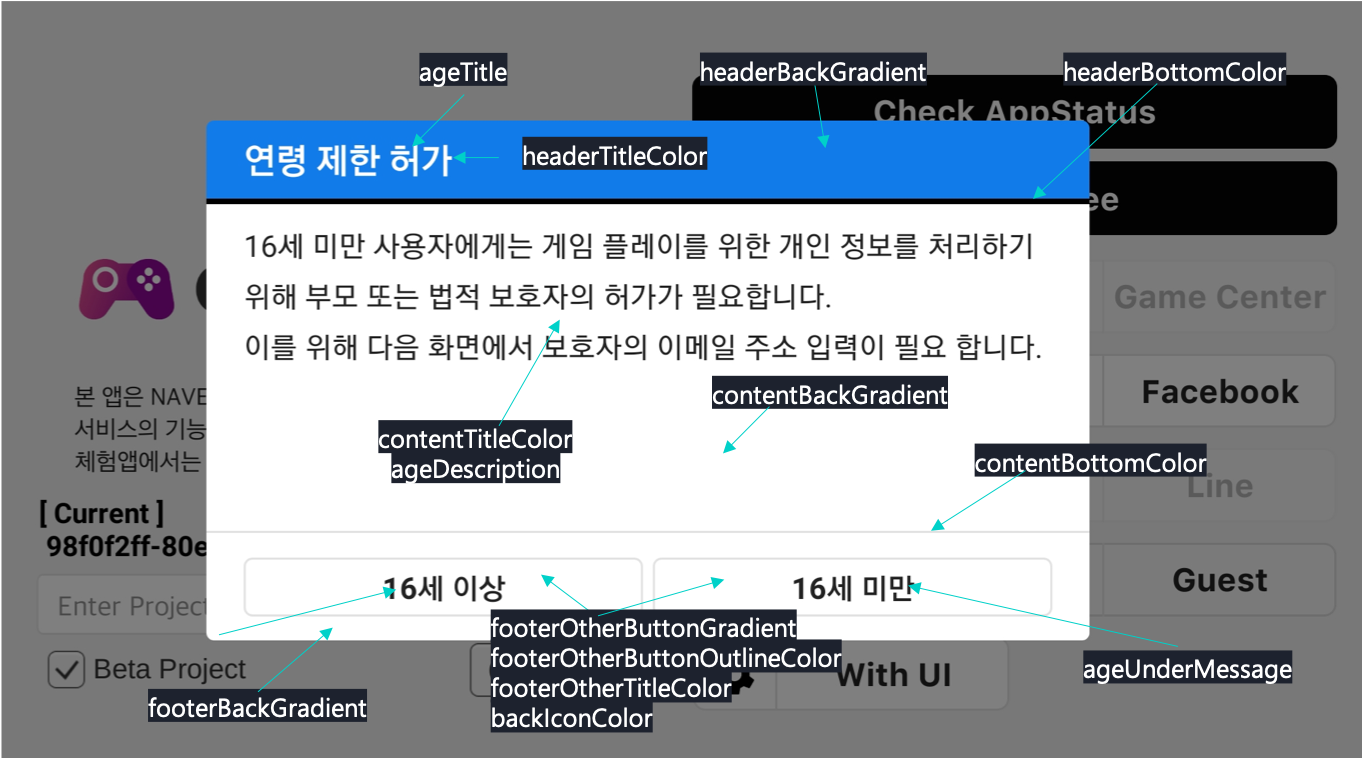
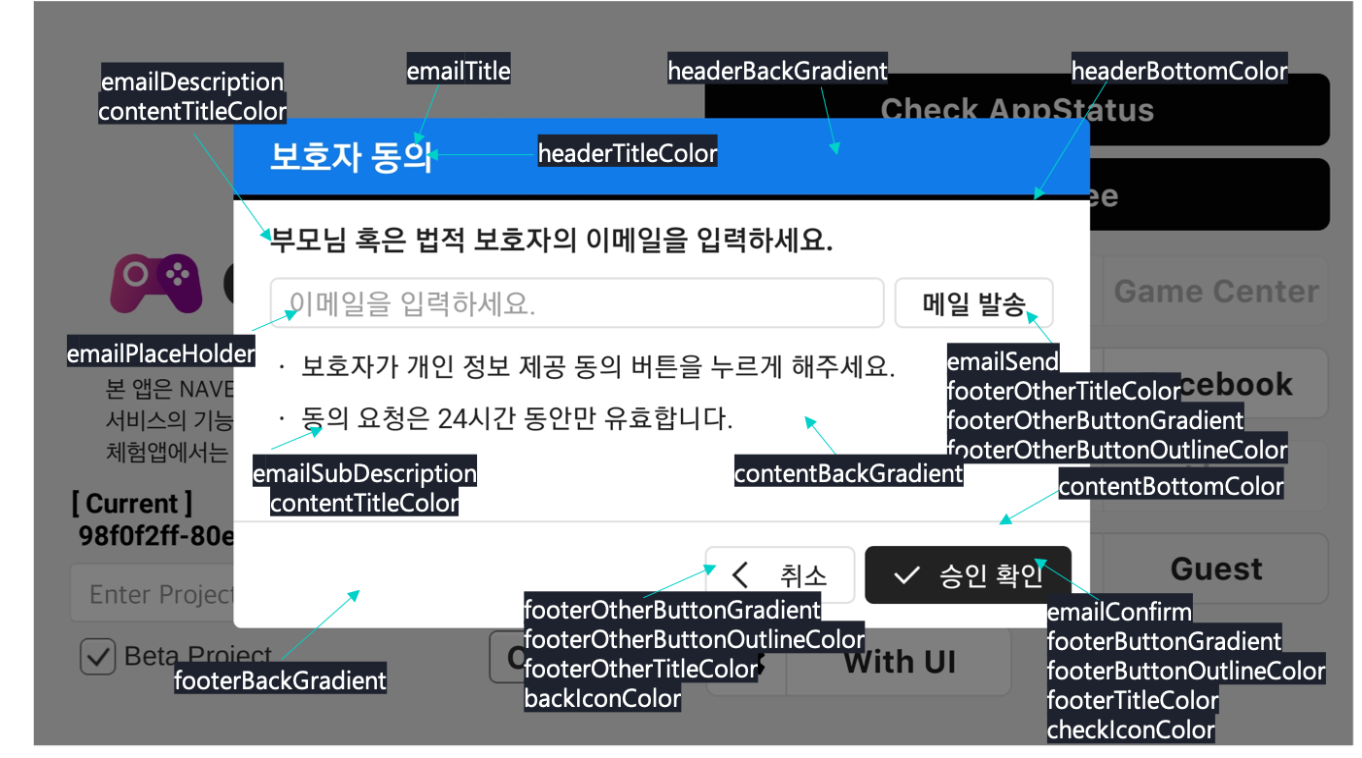
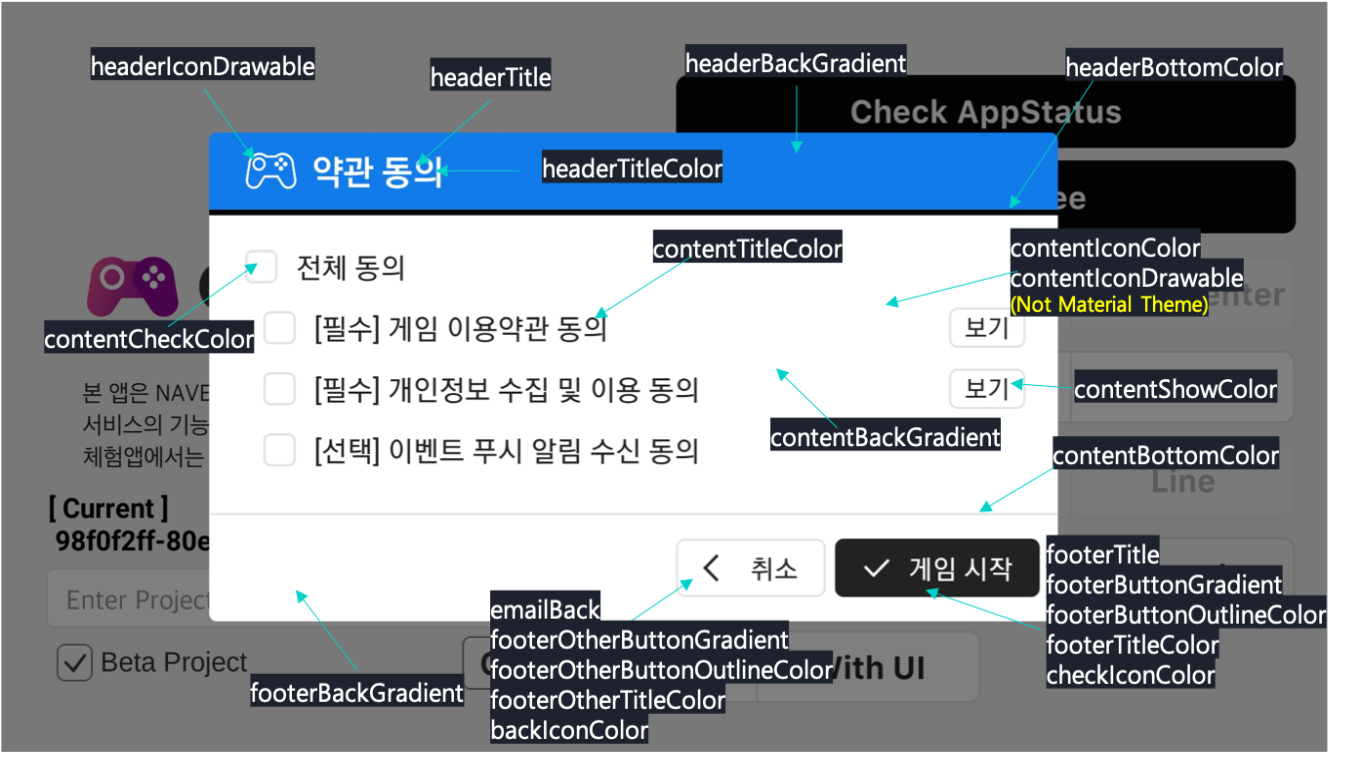
- Each variable applies to the area displayed in the following image.
- **AgeView**
- **EmailView**
- **AgreeView**
#### GDPR Terms and Conditions checklist feature
Use the following code to import the GDPR Terms and Conditions items activated from the dashboard in the form of a list.
```
import io.gamepot.common.GamePot;
(List) GamePot.getInstance().getGDPRCheckedList();
//Each returned parameter applies to the following settings in the dashboard.
gdpr_privacy: Privacy Policy
gdpr_term: Terms and Conditions
gdpr_gdpr: GDPR Terms and Conditions
gdpr_push_normal: Consent to receive event push notifications
gdpr_push_night: Consent to receive nighttime event push notifications (only applicable in Korea)
gdpr_adapp_custom: Consent to see personalized ads (for countries where GDPR is applicable)
gdpr_adapp_nocustom: Consent to see non-personalized ads (for countries where GDPR is applicable)
```
## Maintenance and force update feature
You can use the maintenance and force update features. You can enable each feature from the **Maintenance & update** menu in the dashboard to activate it.
Use the following code to use the maintenance and force update features.
```
GamePotChannel.getInstance().login(this, GamePotChannelType.GOOGLE, new GamePotAppStatusChannelListener() {
@Override
public void onNeedUpdate(GamePotAppStatus status) {
// Force update required. Call the following API to display the pop-up provided by SDK.
// If you'd like to customize it, then you can customize it while the API is not called.
GamePot.getInstance().showAppStatusPopup(MainActivity.this, status, new GamePotAppCloseListener() {
@Override
public void onClose() {
// The showAppStatusPopup API is called when it is necessary to close the app.
// Handle the shutdown process.
MainActivity.this.finish();
}
@Override
public void onNext(Object obj) {
// When you set the dashboard update as recommended, the "Do it next time" button will appear.
// It is displayed when the user selects that button.
// Handle in the same way as when login is completed, using the obj information.
// GamePotUserInfo userInfo = (GamePotUserInfo)obj;
}
});
}
@Override
public void onMainternance(GamePotAppStatus status) {
// Under maintenance. Call the following API to display the pop-up provided by SDK.
// If you'd like to customize it, then you can customize it while the API is not called.
GamePot.getInstance().showAppStatusPopup(MainActivity.this, status, new GamePotAppCloseListener() {
@Override
public void onClose() {
// The showAppStatusPopup API is called when it is necessary to close the app.
// Handle the shutdown process.
MainActivity.this.finish();
}
});
}
@Override
public void onCancel() {
// The user canceled login
}
@Override
public void onSuccess(GamePotUserInfo userinfo) {
// Login completed. Handle this according to the game logic.
}
@Override
public void onFailure(GamePotError error) {
// Login failed. Display the error message using error.getMessage().
}
@Override
public void onGameServiceConflict(GamePotUserInfo conflictUserInfo) {
// This is an event that may occur when using GPGS account integration.
}
});
```
## Remote configuration feature
You can import the server parameter values registered in the **Game > Remote configuration** menu in the dashboard. If you import parameter values and use them in the SDK, then you can edit and control various elements without updating the game.
The imported parameters are loaded at login. You can call them after they have been loaded.
Use the following code to use the remote configuration feature.
```
import io.gamepot.common.GamePot;
//key: Parameter string
String str_value = GamePot.getInstance().getConfig(key);
//Import all parameters added in the dashboard in JSON string format.
String json_value = GamePot.getInstance().getConfigs();
```
## Game log transfer feature
You can call game logs and check them in the **Game > Player** menu in the dashboard.
To use the game log transfer feature, enter reserved words in the following code by referring to the table, and then call the code.
- **Reserved words and code**
| Reserved words | Required | Type | Description | Maximum length |
| --- | --- | --- | --- | --- |
| `GamePotSendLogCharacter.NAME` | Required | `String` | Character name | 128 |
| `GamePotSendLogCharacter.LEVEL` | Optional | `String` | Level | 128 |
| `GamePotSendLogCharacter.SERVER_ID` | Optional | `String` | Server ID | 128 |
| `GamePotSendLogCharacter.PLAYER_ID` | Optional | `String` | Character ID | 128 |
| `GamePotSendLogCharacter.USERDATA` | Optional | `String` | ETC | 128 |
```
import android.text.TextUtils;
import io.gamepot.common.GamePotSendLogCharacter;
import io.gamepot.common.GamePotSendLog;
String name = "Character name";
String level = "10";
String serverid = "svn_001";
String playerid = "283282191001";
String userdata = "";
GamePotSendLogCharacter obj = new GamePotSendLogCharacter();
if(!TextUtils.isEmpty(name))
obj.put(GamePotSendLogCharacter.NAME, name);
if(!TextUtils.isEmpty(level))
obj.put(GamePotSendLogCharacter.LEVEL, level);
if(!TextUtils.isEmpty(serverid))
obj.put(GamePotSendLogCharacter.SERVER_ID, serverid);
if(!TextUtils.isEmpty(playerid))
obj.put(GamePotSendLogCharacter.PLAYER_ID, playerid);
if(!TextUtils.isEmpty(playerid))
obj.put(GamePotSendLogCharacter.USERDATA, userdata);
// result : It is true if logs are transferred, false if not.
boolean result = GamePotSendLog.characterInfo(obj);
```
## Check AppStatus
Use the following code to check current AppStatus of the client. (Check maintenance/update status before login)
```
import io.gamepot.common.GamePot;
GamePot.getInstance().checkAppStatus(new GamePotAppStatusResultListener() {
@Override
public void onSuccess(){
}
@Override
public void onFailure(GamePotError error){
}
@Override
public void onNeedUpdate(GamePotAppStatus status){
// Force update required. Call the following API to display the pop-up provided by SDK.
// If you'd like to customize it, then you can customize it while the API is not called.
GamePot.getInstance().showAppStatusPopup(MainActivity.this, status, new GamePotAppCloseListener() {
@Override
public void onClose() {
// The showAppStatusPopup API is called when it is necessary to close the app.
// Handle the shutdown process.
MainActivity.this.finish();
}
@Override
public void onNext(Object obj) {
// When you set the dashboard update as recommended, the "Do it next time" button will appear.
// It is displayed when the user selects that button.
// Handle in the same way as when login is completed, using the obj information.
// GamePotUserInfo userInfo = (GamePotUserInfo)obj;
}
});
}
@Override
public void onMainternance(GamePotAppStatus status){
// Under maintenance. Call the following API to display the pop-up provided by SDK.
// If you'd like to customize it, then you can customize it while the API is not called.
GamePot.getInstance().showAppStatusPopup(MainActivity.this, status, new GamePotAppCloseListener() {
@Override
public void onClose() {
// The showAppStatusPopup API is called when it is necessary to close the app.
// Handle the shutdown process.
MainActivity.this.finish();
}
});
}
});
```
### Set setUserData
Use when you want to add additional information to the member after login. Maximum number of keys limited to 50 Maximum length of value limited to 1024 bytes The information can only be viewed in the member details.
```
import io.gamepot.common.GamePot;
JSONObject jobj = new JSONObject();
try {
jobj.put("appversion", "1.0.23");
jobj.put("server", "s1");
} catch (JSONException e1) {
e1.printStackTrace();
}
GamePot.getInstance().setUserData(jobj, new GamePotCommonListener() {
@Override
public void onSuccess() {
// setUserData succeeded
}
@Override
public void onFailure(GamePotError error) {
// setUserData failed
}
});
```
## Integrate third party SDK
GAMEPOT Android SDK supports the integration with third-party SDKs.
### Integrate third party SDK login
To use the login feature by integrating a third-party SDK, edit values in the following code by referring to the table, and then use that code.
- **Parameters and code**
| Parameter name | Required | Type | Description |
| --- | --- | --- | --- |
| `activity` | Required | `String` | Current activity |
| `userid` | Required | `String` | Unique user ID |
| `listener` | Required | `GamePotChannelListener / GamePotAppStatusChannelListener` | Request result |
```
String memberId = "memberid of 3rd party sdk";
GamePotChannel.getInstance().loginByThirdPartySDK(getActivity(), memberId, new GamePotAppStatusChannelListener() {
@Override
public void onNeedUpdate(GamePotAppStatus status) {
// Force update required. Call the following API to display the pop-up provided by SDK.
// If you'd like to customize it, then you can customize it while the API is not called.
GamePot.getInstance().showAppStatusPopup(MainActivity.this, status, new GamePotAppCloseListener() {
@Override
public void onClose() {
// The showAppStatusPopup API is called when it is necessary to close the app.
// Handle the shutdown process.
MainActivity.this.finish();
}
@Override
public void onNext(Object obj) {
// When you set the dashboard update as recommended, the "Do it next time" button will appear.
// It is called when the user selects that button.
// Handle in the same way as when login is completed, using the obj information.
// GamePotUserInfo userInfo = (GamePotUserInfo)obj;
}
});
}
@Override
public void onMainternance(GamePotAppStatus status) {
// Under maintenance. Call the following API to display the pop-up provided by SDK.
// If you'd like to customize it, then you can customize it while the API is not called.
GamePot.getInstance().showAppStatusPopup(MainActivity.this, status, new GamePotAppCloseListener() {
@Override
public void onClose() {
// The showAppStatusPopup API is called when it is necessary to close the app.
// Handle the shutdown process.
MainActivity.this.finish();
}
});
}
@Override
public void onCancel() {
// The user canceled login
}
@Override
public void onSuccess(GamePotUserInfo userinfo) {
// Login completed. Handle this according to the game logic.
}
@Override
public void onFailure(GamePotError error) {
// Login failed. Display the error message using error.getMessage().
}
@Override
public void onGameServiceConflict(GamePotUserInfo conflictUserInfo) {
// This is an event that may occur when using GPGS account integration.
}
});
```
### Integrate third party SDK payment
To use the payment feature by integrating a third-party SDK, edit values in the following code by referring to the table, and then use that code.
- **Parameters and code**
| Parameter name | Required | Type | Description |
| --- | --- | --- | --- |
| `productid` | Required | `String` | Item ID registered in the dashboard |
| `transactionid` | Required | `String` | Payment receipt number (GPA-xxx-xxxx-xxxx) |
| `currency` | Optional | `String` | Currency (KRW, USD) |
| `price` | Optional | `double` | Amount of purchased items |
| `paymentid` | Optional | `String` | Payment store (`google`, `apple`, `one`, `galaxy`) |
| `uniqueid` | Optional | `String` | Unique ID used by the developer |
| `listener` | Optional | `GamePotListener` | Request result |
```
String productId = "purchase_001";
String transactionId = "GPA-xxx-xxxx-xxxx";
String currency = "KRW";
double price = 1200;
String paymentId = "google";
String uniqueId = "developer unique id";
GamePot.getInstance().sendPurchaseByThirdPartySDK(productId, transactionId, currency, price, paymentId, uniqueId, null);
```
## Collect ELSA log
Call the following code to use the log collection feature by integrating with ELSA.
```
// initialize
GamePotLogger.init(Application application);
// debug
GamePotLogger.d(String errorCode, String message)
// info
GamePotLogger.i(String errorCode, String message)
// warn
GamePotLogger.w(String errorCode, String message)
// error
GamePotLogger.e(String errorCode, String message)
```
The call example is as follows:
```
@Override
public void onFailure(GamePotError error) {
GamePotLogger.e(Integer.toString(error.getCode()), error.getMessage());
}
```