Available in Classic and VPC
Dashboard lets you view the status of your certificates by product group on a single page. It shows certificate counts by status, upcoming certificate expirations, and organization and domain validations nearing expiration so you can quickly identify what needs renewal.
To open the Dashboard menu, in the NAVER Cloud Platform console, navigate to Menu > All Services > Security > Certificate Manager > Dashboard.
- The figures on Dashboard are calculated when you open the page. To view the latest information, click [Refresh].
- Dashboard provides summary information. For certificate details and management features, go to Certificate List or Order List.
Dashboard interface
The Dashboard interface has 2 areas: Cloud Certificate on the left and Enterprise Certificate on the right.
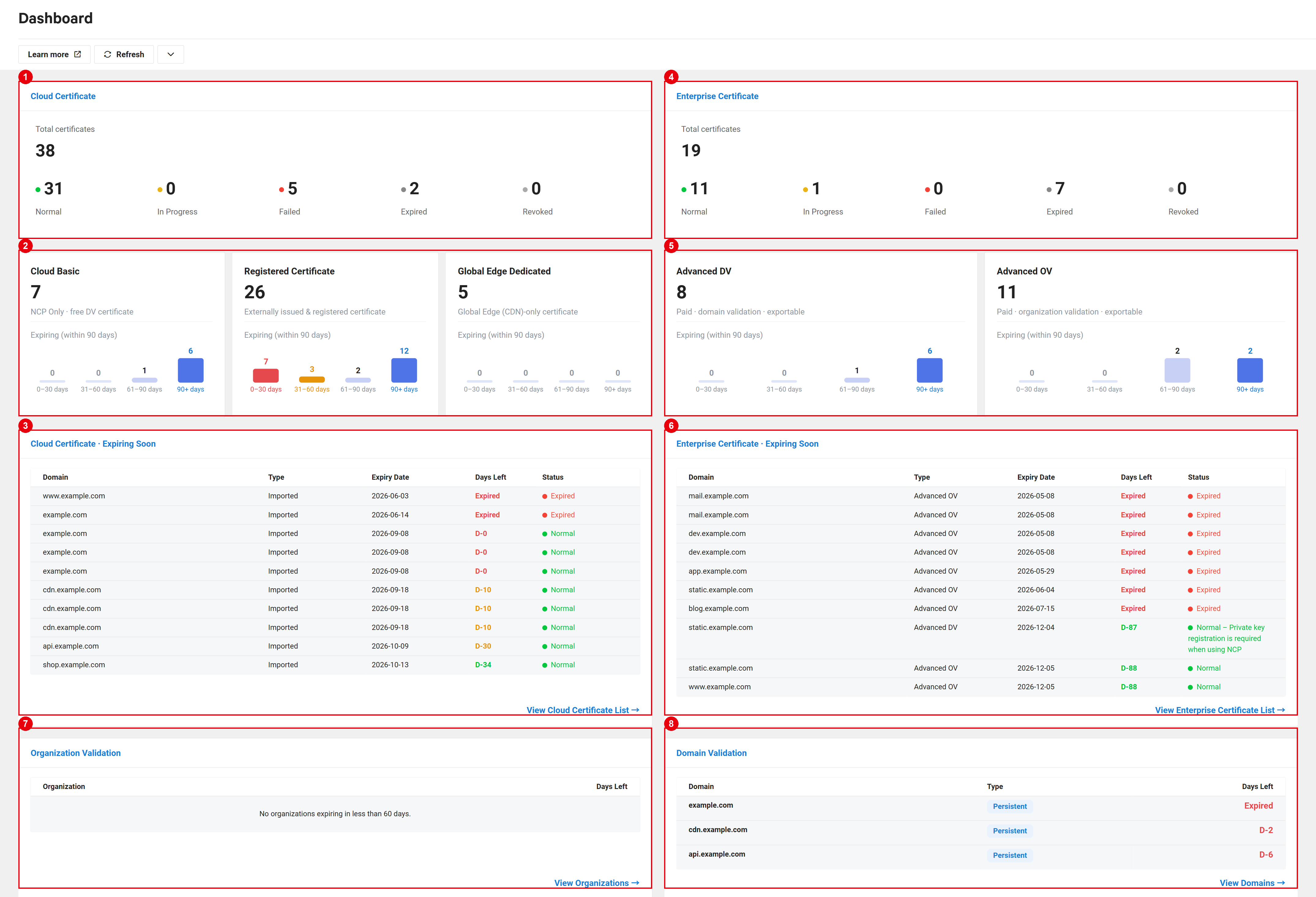
| Component | Description |
|---|---|
| ① Cloud Certificate | Displays the total number of Cloud Certificate certificates and counts by status (see Overall certificate status). |
| ② Cards by Cloud Certificate type | Displays certificate counts and upcoming expirations by Cloud Certificate type (see Cards by certificate type). |
| ③ Cloud Certificate · Expiring soon | Displays up to 10 Cloud Certificate certificates nearing expiration (see Expiring certificate lists). |
| ④ Enterprise Certificate | Displays the total number of Enterprise Certificate certificates and counts by status (see Overall certificate status). |
| ⑤ Cards by Enterprise Certificate type | Displays certificate counts and upcoming expirations by Enterprise Certificate type (see Cards by certificate type). |
| ⑥ Enterprise Certificate · Expiring soon | Displays up to 10 Enterprise Certificate certificates nearing expiration (see Expiring certificate lists). |
| ⑦ Organization validation information | Displays up to 5 organizations with validation nearing expiration (see Validation information). |
| ⑧ Domain validation information | Displays up to 5 prevalidated domains with validation nearing expiration (see Validation information). |
Overall certificate status
The Cloud Certificate and Enterprise Certificate areas show certificate counts by status for each product group.
- All certificates: The total number of certificates you have in the product group.
- Counts by status: Certificate list statuses are grouped as follows.
| Dashboard label | Certificate list status | Description |
|---|---|---|
| Normal | Normal | A valid, unexpired certificate is successfully registered or issued. |
| Validating | In progress | A certificate has been requested, and domain validation is in progress. |
| Issuance failed | Failed, Validation timeout | Certificate issuance has failed, or domain validation has timed out. |
| Expired | Expired | The certificate has expired. |
| Revoked | Revoked | The issued certificate has been revoked. |
For details about certificate statuses, see Certificate status.
Cards by certificate type
Each certificate type has a card showing the certificate count and upcoming expirations.
Cloud Certificate
| Card | Console description |
|---|---|
| Cloud Basic | Free domain validated (DV) certificates for use exclusively within NAVER Cloud Platform. |
| Registered certificates | Certificates issued externally and registered here. Displayed as Imported certificate in the Type field of the expiring certificate lists. |
| Global Edge Dedicated | Certificates dedicated to Global Edge (CDN). |
Enterprise Certificate
| Card | Console description |
|---|---|
| Advanced DV | Paid, domain validated, and exportable |
| Advanced OV | Paid, organization validated, and exportable |
Upcoming expirations
Each card shows Expiring soon (within 90 days) with a chart grouped by the number of days remaining.
| Range | Description |
|---|---|
| 0-30 days | Number of certificates expiring within 30 days |
| 31-60 days | Number of certificates expiring in 31-60 days |
| 61-90 days | Number of certificates expiring in 61-90 days |
| 90 days or more | Number of certificates with more than 90 days until expiration |
- Upcoming expiration counts include only certificates with a status of Normal. Certificates that have not yet been issued or have already expired are excluded.
- The 0-30 days range is highlighted in red, and the 31-60 days range is highlighted in orange.
Expiring certificate lists
The Cloud Certificate · Expiring soon and Enterprise Certificate · Expiring soon lists each display up to 10 certificates, ordered by the earliest expiration date.
- Domain: The primary domain of the certificate.
- Type: The certificate type (Imported certificate, Cloud Basic, Global Edge Dedicated, Advanced DV, or Advanced OV).
- Expiration date: The end date of the validity period.
- Days remaining: The number of days until expiration, displayed in the format "D-number of days." Displays Expired if the certificate has already expired.
- Status: The certificate status.
To view the full list, click [View Cloud Certificate List details →] or [View Enterprise Certificate List details →] below the list.
Validation information
You can view organization information and prevalidated domains used for Enterprise Certificate issuance whose validations are nearing expiration.
Organization validation information
Displays up to 5 validated organizations whose validation expires in fewer than 60 days, ordered by the earliest expiration date.
- Organization name: The name of the validated organization.
- Days remaining: The number of days until organization validation expires.
If no organization validation expires in fewer than 60 days, the message "No organizations expire in fewer than 60 days." is displayed. To view the full list, click [View Organizations details →]. For details about organization validation, see Organizations.
Domain validation information
Displays up to 5 prevalidated domains whose validation is nearing expiration, ordered by the earliest expiration date.
- Domain: The name of the prevalidated domain.
- Type: The domain control validation (DCV) method. The reusable DNS TXT validation method is displayed as Persistent.
- Days remaining: The number of days until domain validation expires.
To view the full list, click [View Domains details →]. For details about prevalidated domains, see Domains.
Domains of the Persistent type whose validation has expired cannot be reused. They are included in the list with Expired shown under Days remaining. To issue a certificate for 1 of these domains, validate the domain again.