Available in Classic and VPC
You can view orders and issue or manage certificates in Order List under Enterprise Certificate.
To open the Order List menu, in the NAVER Cloud Platform console, navigate to Menu > All Services > Security > Certificate Manager > Enterprise Certificate > Order List.
Enterprise Certificate offers 2 certificate types, Advanced DV and Advanced OV. You can use these certificates within NAVER Cloud Platform or download them for use on external servers. For details about certificate types, see Certificates issued by Certificate Manager.
Order List interface
The Order List interface under Enterprise Certificate includes the following components:
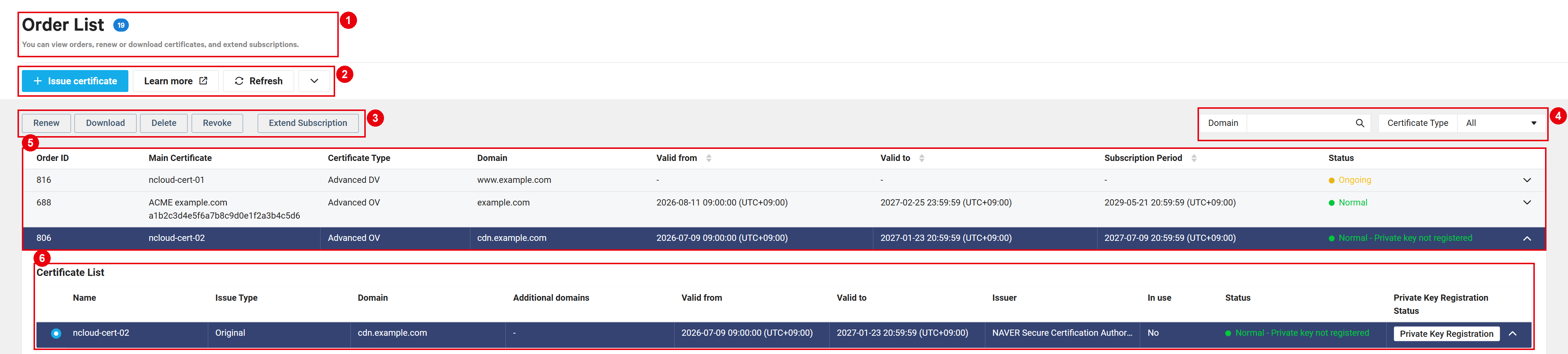
| Component | Description |
|---|---|
| ① Menu name and page description | Current menu name, order count, and page description.
|
| ② Basic features | Features displayed when you first open the Order List menu.
|
| ③ Certificate actions | Enabled when you select an order or certificate. Click [Renew], [Download], [Delete], [Revoke], or [Extend subscription] to perform the corresponding action (see Manage certificates). |
| ④ Search and filter | Search for orders by domain or filter the list by certificate type (see Search and filter). |
| ⑤ Order list | Displays orders for issued certificates.
|
| ⑥ Certificate list | Displays certificates issued within the selected order.
|
Certificate action buttons are enabled based on the selected item. All buttons are disabled until you select an order or a certificate within an order.
Search and filter
You can quickly find the order you need in the list.
- Domain: Enter a domain in the search box to display only orders for domains containing the entered text.
- Certificate type: Select All, Advanced DV, or Advanced OV to filter the list.
Click the sort icon in the Authentication start date, Authentication end date, or Subscription period column header to sort in ascending or descending order.
View the order list
An order groups newly issued Enterprise Certificate certificates for management. You can renew certificates within an order.
- Order ID: The unique identifier of the order.
- Representative certificate: The name of the certificate used as the representative within the order. Select this certificate when renewing.
- Certificate type: Advanced DV or Advanced OV.
- Domain: The representative certificate's domain name.
- Authentication start date: The start date of the representative certificate's validity period.
- Authentication end date: The end date of the representative certificate's validity period.
- Subscription period: The period during which you can issue certificates within the order. You can renew certificates for use during this period.
- Status: The status of the representative certificate.
The order list is divided into pages. Use the controls below the list to switch pages. Select Show 20 per page, Show 40 per page, or Show 60 per page to set the number of items displayed.
View the certificate list
To view issued certificates in Order List under Enterprise Certificate:
- In the NAVER Cloud Platform console, navigate to Menu > All Services > Security > Certificate Manager.
- Click Enterprise Certificate > Order List.
- Click the arrow to the right of an order to view summary information in the Certificate list, or click a certificate to view its details.

- Name: The name set when issuing the certificate.
- Issuance type: Original, Representative, or Renewal.
- Domain: The primary domain of the certificate.
- Additional domain: Subdomains included in the certificate.
- Authentication start date: The start date of the validity period.
- Authentication end date: The end date of the validity period.
- Issuing institution: Information about the certificate authority.
- In use: Whether the certificate is in use.
- If the certificate is in use, In use is displayed along with the instance type, number, and name.
- Status: The certificate status. If the private key has not been registered, displays Normal - Private key registration required for NCP use.
- Private key registration status: To use the certificate within NAVER Cloud Platform, register its private key by clicking [Register private key]. Displays Registered when registration is complete.
- Click a certificate to view Certificate details, Domain validation information, and Organization information.
- Certificate details: Issuing CA, Domain, Additional domain, Serial number, Public Key information, Name (Certificate No), Registration date, Issue date, Authentication start date, Authentication end date, Signature algorithm, and In use.
- Domain validation information: The Domain control validation (DCV) method, the Validation status of each domain, and the Record Name, Record Type, and Record Value to register in DNS.
- Organization information: For Advanced OV certificates, displays the validated Organization name (Korean), Organization name (English), Business registration number, and Validation information (Organization, Country, State/Province, and Locality).
- The certificate list within an order is also divided into pages.
- For details about certificate statuses, see Certificate status.
Issue a certificate
You can obtain and use Advanced DV and Advanced OV certificates from NAVER Cloud Trust Services, a trusted certificate authority. For more information, see the following document:
- To issue an Advanced OV certificate, complete organization validation first. For details, see Organizations.
- To issue Cloud Basic and Global Edge Dedicated certificates, go to Cloud Certificate > Certificate List. For details, see Certificate List.
Manage certificates
Selecting an order or certificate enables the certificate action buttons above the list. Use these buttons to manage certificates.
Renew
Request renewal of an Enterprise Certificate. For more information, see the following document:
Download
Download the certificate file and chain file of the selected certificate.
Delete
To delete an Enterprise Certificate:
- Select a certificate to delete and click [Delete].
- Review the information in the Delete certificate popup, enter the certificate name, and click [Delete].
- Deleting the representative certificate also deletes the order and all certificates within it.
Once deleted, a certificate can't be recovered.
- Expired and revoked certificates are not automatically deleted. Follow the procedure for deleting a certificate to delete it.
- If you have services with which the certificate is integrated, you can delete it after removing the integrations with the certificate from those services.
Revoke
You can request revocation of an Enterprise Certificate before it expires. When you no longer use a certificate, you can revoke it to prevent misuse of the certificate and key pair. For more information, see the following document:
Extend a subscription
Extend the subscription period of the selected order. For more information, see the following document: